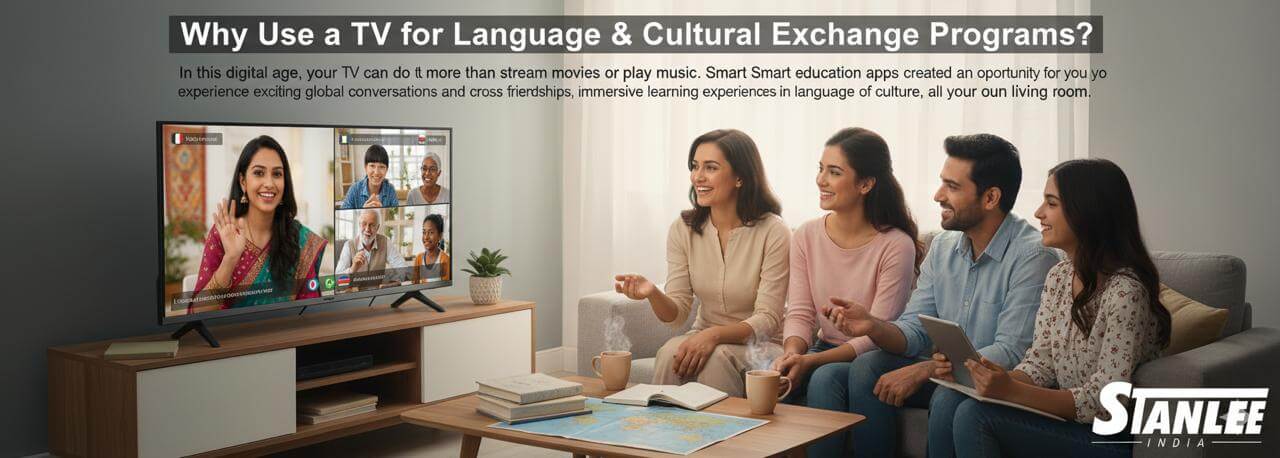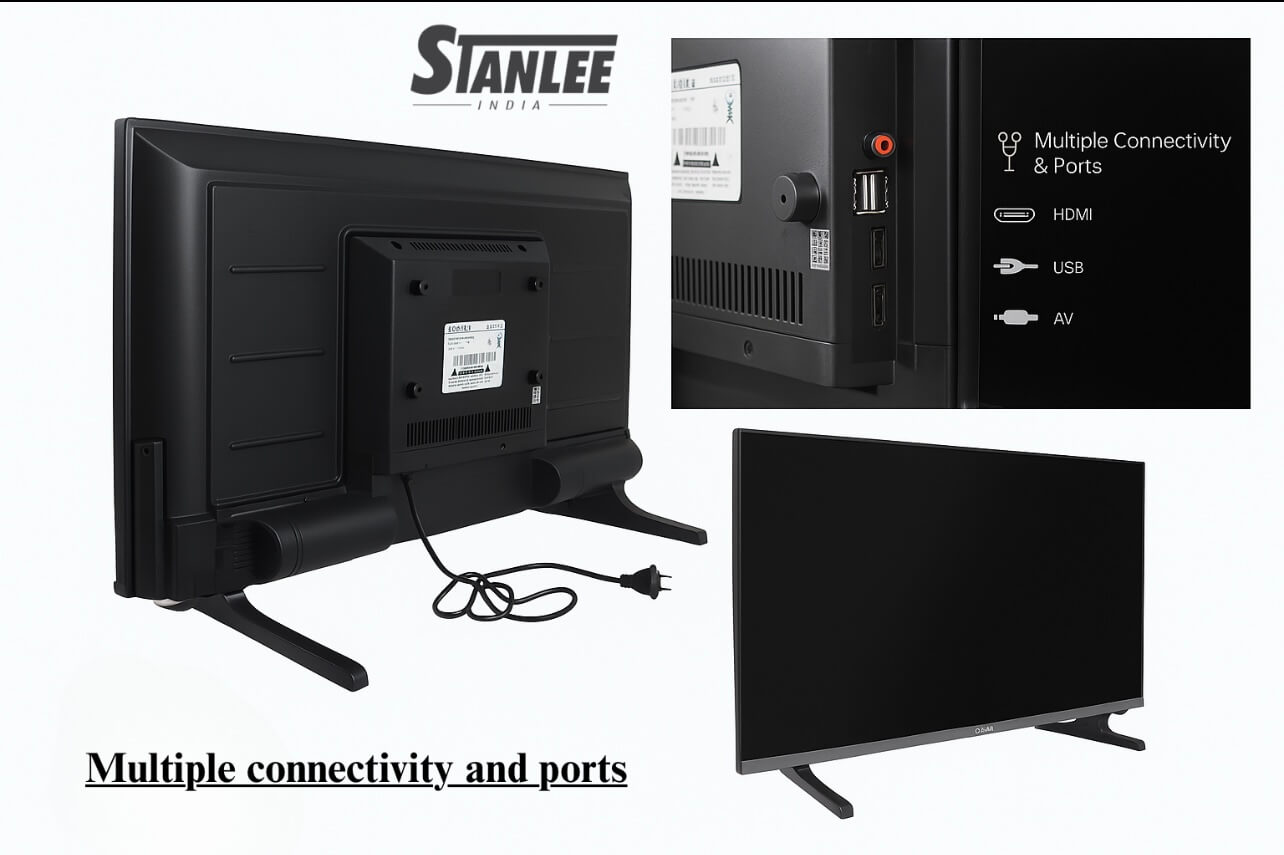
Your iPhone or iPad is no longer just a communication device in this hyper-connected world – it’s your entertainment hub.
You might want to stream a movie, play a mobile game on a bigger screen, or share a presentation at work;
mirroring your iOS screen to your smart TV is a useful tool.
And the best part? It is actually easier than you think.
At Stanlee India, we want to make smart living easier. In this guide, we’ll outline the easiest and simplest way to mirror your iOS device to your smart TV – hassle-free, wire-free, and no third parties involved.
Why You Would Want to Mirror Your iOS Device to a TV
- Full large screen Entertainment: Watch Netflix, YouTube, or Apple TV+ on the big screen.
- Mobile Gaming on the TV: Game on mobile and play it on your TV like Asphalt 9 or Call of Duty Mobile – just like it was designed for consoles.
- Sharing Photos and Videos: Share fun times with friends and family in HD.
- Professional Presentations: No cables, no laptops – your iPhone is a portable projector.
What Actually Required Before You Get Started
✔ A Smart TV (Samsung, LG, Sony, Mi, etc.) with a Wi-Fi connection
✔ Either iPhone or iPad with minimum iOS 12
✔ The TV and iPhone both need to be on the same Wi-Fi network
✔ A TV that has AirPlay 2 capabilities (most modern TVs have this feature)
If your TV does not have AirPlay capabilities, don’t worry! We will also explain another method of using an HDMI adapter.
Method 1: By Using AirPlay – The Apple Way
Step-by-Step Guide:
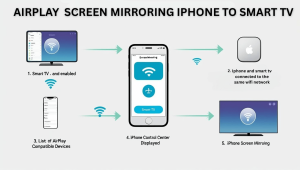
-
Turn on your Smart Television
- Make sure your Smart TV supports AirPlay. Go to Settings > General > Apple AirPlay Settings and turn it to ON.
- They must be on the Same Wi-Fi.
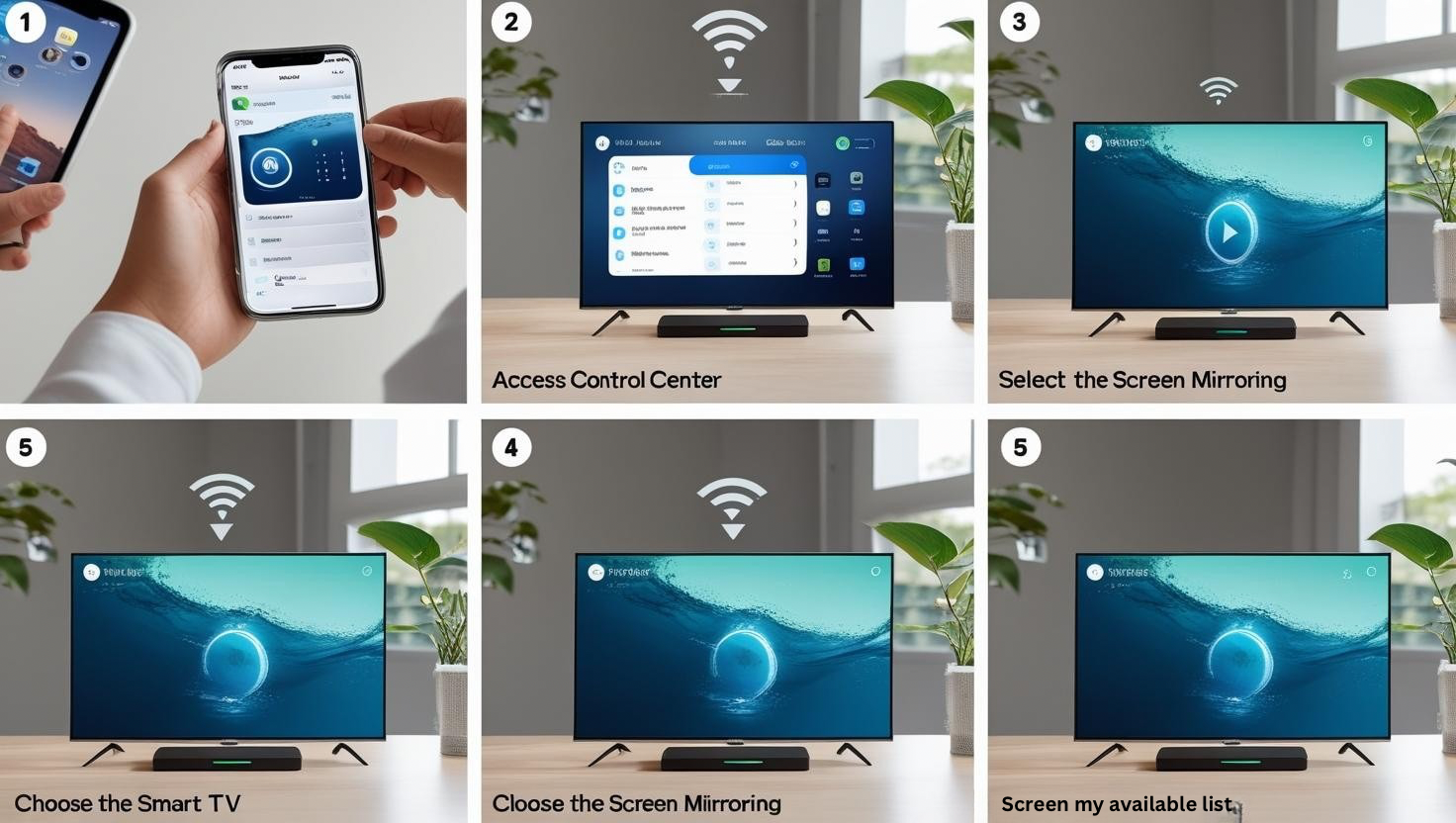
- On your iPhone swipe down from the top right corner to open Control Center
- Click Screen Mirroring (the icon overlapping two rectangles)
- TV name will appear in the list of devices. Tap your TV name.
- Your TV might show a 4-digit code. Enter that code to your iPhone.
- Done! – your screen is now mirrored to the TV.
Stanlee India Pro Tip:
to stop mirroring just go to Control Center again and tap Stop Mirroring.
Method 2: Using a Lightning to HDMI Adapter (for TVs other than AirPlay)
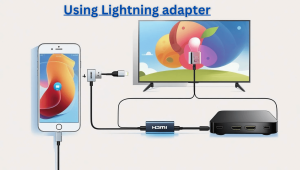
If your TV does not support AirPlay or you want the zero lag advantage, you should consider going wired.
What You Will Need:
- Apple Lightning Digital AV Adapter
- HDMI Cable
How to Connect:
- Plugging in the lightning adapter to your iPhone
- Connect an HDMI cable to the adapter and the TV
- Change the input to the correct HDMI port
- Instantly your iPhone screen appears on your TV!
This method is very effective for gaming, offline videos or when your Wi-Fi is not stable.
Troubleshooting tips
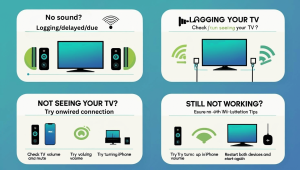
– No sound?
Check your TV volume and mute settings — also, try turning up the iPhone volume.
– Lagging/delayed?
Try the “wired” method (use the wired method).
– Not seeing your TV?
Make sure both devices are on the same Wi-Fi.
– Still not working?
Restart both devices and start again.
Why are Smart Homes choosing Stanlee India?
We do not just sell electronics; we deliver intelligent experiences.
Whether you just purchased a smart TV that does not come with AirPlay support, or premium display compatible with Apple, we can help with that — from picking the right smart TV, best adapters, to onsite support and setup.
✨ Hot Deal Alert! Buy a AirPlay-compatible TV from Stanlee India and get a free setup guide for screen mirroring, with a support call — this month only!
Final thoughts on screen mirroring;
Screen mirroring isn’t just a high tech feature;
it’s a lifestyle upgrade.
Whether it is a movie night, a business pitch or gaming night, screen mirroring your iPhone or iPad to your TV makes for a better experience.
And having Stanlee India with you makes it even better.
Stay Tuned, Stay Connected